SOUPCAM / Support
A little help for your next shot.
Questions, feedback or an unexpected problem? Contact Metalab at the address below.
Contact Metalab
yuan-gou@outlook.comFor troubleshooting, include your iPhone model, iOS version, Soupcam version and the steps that led to the issue. Attach a screenshot only if you wish; hide private information first.
Frequently asked questions
How does Soupcam work?
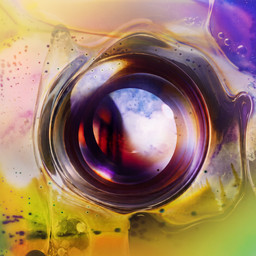
Open the camera and shoot, or import a photo. A random digital development simulates the look of film-soup chemistry. There are no selectable filters or effect controls.
Where are my photos?
Finished images are kept in the app's private roll. Save important photos to Photos. Deleting Soupcam also removes its private roll; there is no Soupcam cloud-sync service.
Why can't I save a photo?
Allow Soupcam to add images to Photos in iOS Settings, and check available storage. Importing uses Apple's photo picker and accesses the photos you select.
What does deleting do?
Deleting from the in-app roll removes that copy. Copies already exported to Photos or shared elsewhere remain. Soupcam does not keep an original in its roll; an imported original in Photos is not changed.
How do I restore Pro?
In Soupcam Settings, open Pro and choose Restore purchases with the Apple Account used for the purchase. Pro is a one-time purchase for batch saving, batch deletion and ad removal. Apple handles billing and refunds.
How do I change ad privacy choices?
This change starts with version 1.0 build 39. Earlier builds use non-personalized ads and may show regional consent forms; where available, their Ad privacy settings let you revise those choices. Update the app to use the new approach.
The free version uses Google AdMob limited banner ads in the roll. No tracking permission or advertising consent popup is requested. Google may process IP addresses, ad interactions and diagnostics, and use storage for fraud prevention. Pro removes ads. Photos stay on this device.